 ## Language / Bahasa
[[English]](https://github.com/HirziDevs/PteroStats/blob/main/README.md) | [[Indonesia]](https://github.com/HirziDevs/PteroStats/blob/main/Indo.md)
## Language / Bahasa
[[English]](https://github.com/HirziDevs/PteroStats/blob/main/README.md) | [[Indonesia]](https://github.com/HirziDevs/PteroStats/blob/main/Indo.md)
## Language / Bahasa
[[English]](https://github.com/HirziDevs/PteroStats/blob/main/README.md) | [[Indonesia]](https://github.com/HirziDevs/PteroStats/blob/main/Indo.md)
## Language / Bahasa
[[English]](https://github.com/HirziDevs/PteroStats/blob/main/README.md) | [[Indonesia]](https://github.com/HirziDevs/PteroStats/blob/main/Indo.md)
 - [Calvs Cloud](https://discord.gg/ssCQjhrBJN)
 ## Installation
1. [Getting apikey from pterodactyl](#getting-apikey-from-pterodactyl)
2. [Creating Discord Bot](#creating-discord-bot)
3. [Inviting Discord Bot](#inviting-discord-bot)
4. [Getting Channel ID](#getting-channel-id)
5. [Starting bot](#starting-bot)
- [Using Custom Emoji](#using-custom-emoji)
- [Blacklist Nodes](#blacklist-nodes)
### Getting apikey from pterodactyl
1. Go to your `pterodactyl admin page` and go to `Application API`.
## Installation
1. [Getting apikey from pterodactyl](#getting-apikey-from-pterodactyl)
2. [Creating Discord Bot](#creating-discord-bot)
3. [Inviting Discord Bot](#inviting-discord-bot)
4. [Getting Channel ID](#getting-channel-id)
5. [Starting bot](#starting-bot)
- [Using Custom Emoji](#using-custom-emoji)
- [Blacklist Nodes](#blacklist-nodes)
### Getting apikey from pterodactyl
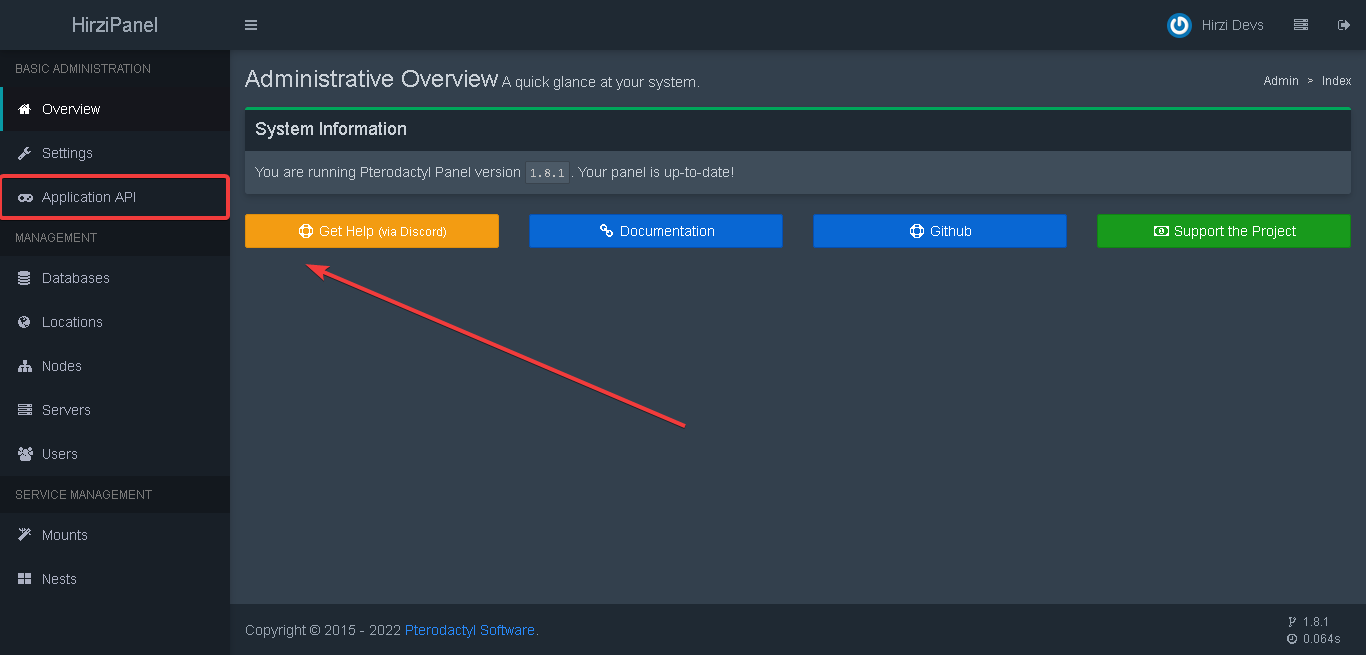
1. Go to your `pterodactyl admin page` and go to `Application API`.
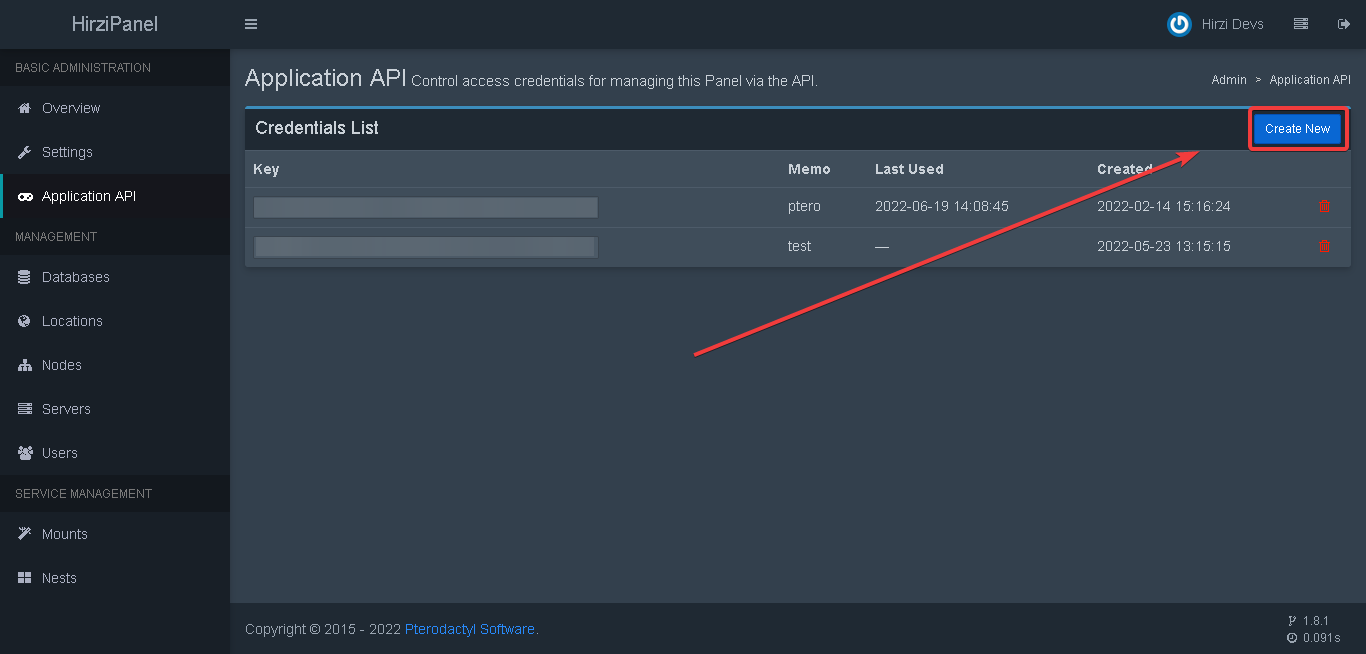
 2. Click on the `Create New` button
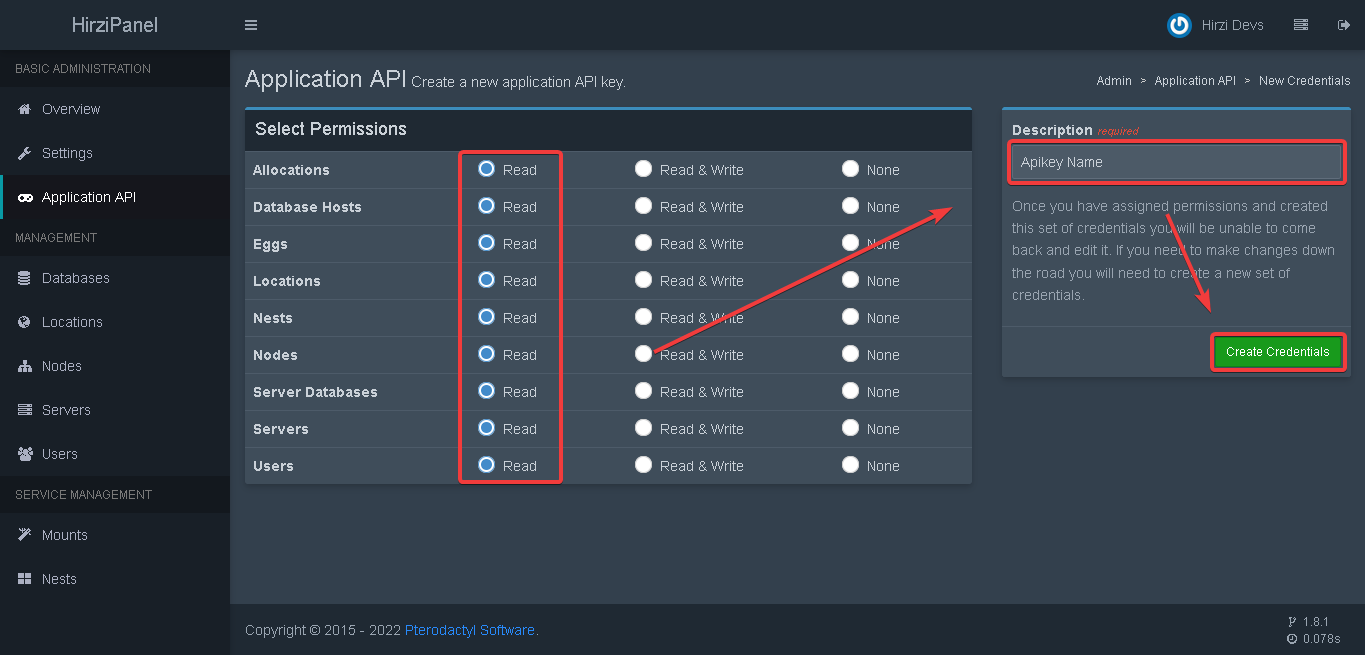
 3. Set all options permission to `read` and for description you can put whatever you want
 4. Copy the apikey.
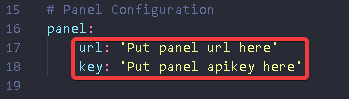
 5. Paste the panel apikey and panel url at the config
 ### Creating Discord Bot
Please refer to [this website](https://discordjs.guide/preparations/setting-up-a-bot-application.html)
Paste the bot token at the config
### Creating Discord Bot
Please refer to [this website](https://discordjs.guide/preparations/setting-up-a-bot-application.html)
Paste the bot token at the config
 ### Inviting Discord Bot
Please refer to [this website](https://discordjs.guide/preparations/adding-your-bot-to-servers.html)
### Getting Channel ID
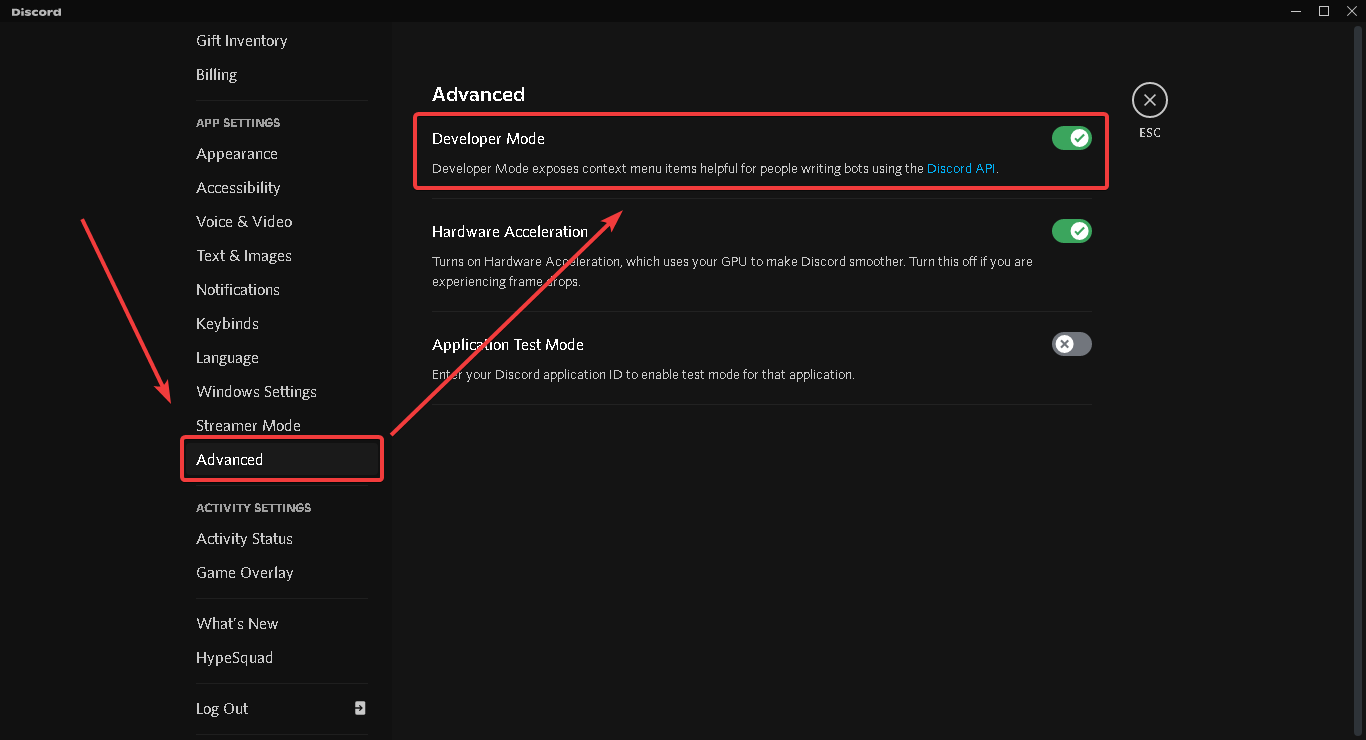
1. Enable Developer Feature at your discord settings
### Inviting Discord Bot
Please refer to [this website](https://discordjs.guide/preparations/adding-your-bot-to-servers.html)
### Getting Channel ID
1. Enable Developer Feature at your discord settings
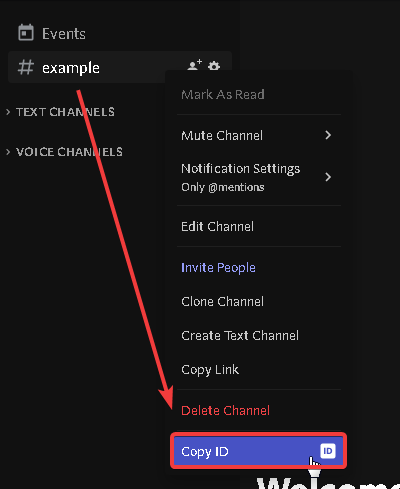
 2. Right Click text channel and select `Copy ID`
 3. Paste the channel id at the config
 ### Starting bot
1. Make sure you have done the things above
2. Run `npm install` in the root directory of the bot files.
3. Run `node index` and you are done.
if you need help contact me on discord `Hirzi#8701` or join [our discord support server](https://discord.gg/zv6maQRah3)
### Using Custom Emoji
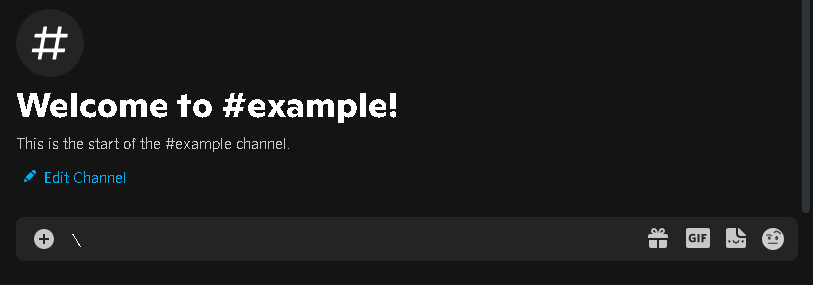
1. type `\` in guild that has custom emoji you want
### Starting bot
1. Make sure you have done the things above
2. Run `npm install` in the root directory of the bot files.
3. Run `node index` and you are done.
if you need help contact me on discord `Hirzi#8701` or join [our discord support server](https://discord.gg/zv6maQRah3)
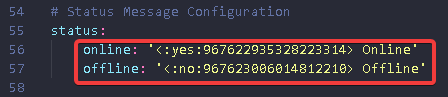
### Using Custom Emoji
1. type `\` in guild that has custom emoji you want
 2. Select custom emoji you want
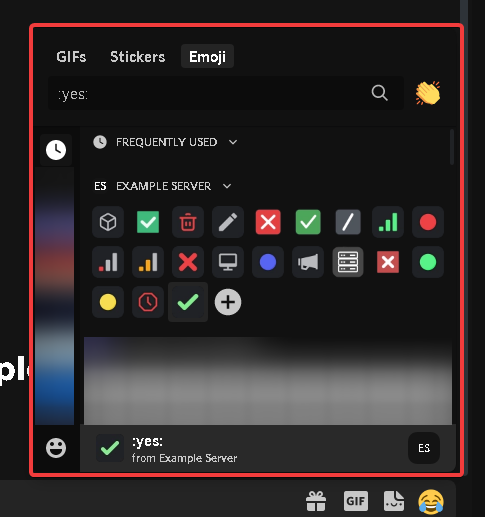 3. Copy the text!
 4. Paste the emoji id at the config
 ### Blacklist Nodes
1. Select node from node list on admin page
### Blacklist Nodes
1. Select node from node list on admin page
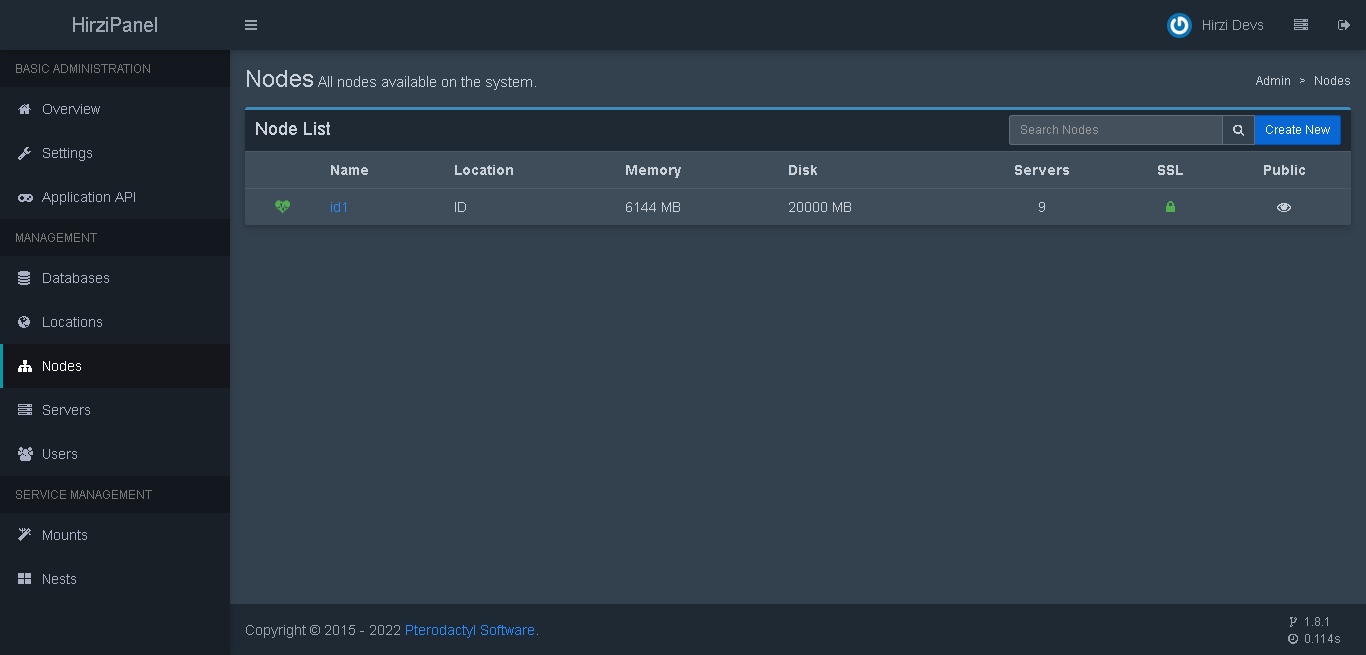 2. Check the url and copy the node id
 3. Paste the id to the blacklist on config
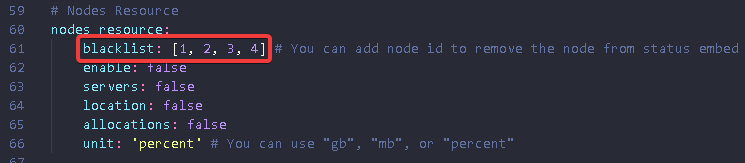
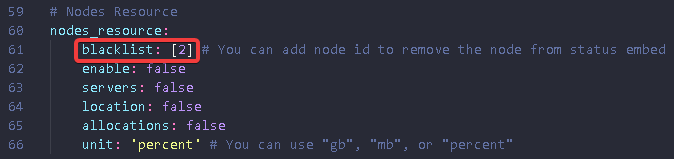 You can add more than one node in the blacklist
 ## The node is online but the embed is read as offline
If you having this issue, you can enable `log_error` on the config file and report it to our discord server at [Support Server](https://discord.gg/zv6maQRah3)
## Links
- [PteroStats DiscordJS v13](https://github.com/HirziDevs/PteroStats/tree/3d0512c3323ecf079101104c7ecf3c94d265e298)
- [PteroStats DiscordJS v12](https://github.com/HirziDevs/PteroStats/tree/bcfa266be64dda11955f0bf9732da086bcea522c)
- [Pterodactyl Panel](https://pterodactyl.io)
- [Pterodactyl Api Documentation](https://dashflo.net/docs/api/pterodactyl/v1/)
- [Pterodactyl Discord Server](https://discord.gg/pterodactyl)
- [PteroBot Support Server](https://discord.gg/zv6maQRah3)
- [PteroBot Support Server (Indonesia)](https://discord.gg/EYaFB7WSg6)
## The node is online but the embed is read as offline
If you having this issue, you can enable `log_error` on the config file and report it to our discord server at [Support Server](https://discord.gg/zv6maQRah3)
## Links
- [PteroStats DiscordJS v13](https://github.com/HirziDevs/PteroStats/tree/3d0512c3323ecf079101104c7ecf3c94d265e298)
- [PteroStats DiscordJS v12](https://github.com/HirziDevs/PteroStats/tree/bcfa266be64dda11955f0bf9732da086bcea522c)
- [Pterodactyl Panel](https://pterodactyl.io)
- [Pterodactyl Api Documentation](https://dashflo.net/docs/api/pterodactyl/v1/)
- [Pterodactyl Discord Server](https://discord.gg/pterodactyl)
- [PteroBot Support Server](https://discord.gg/zv6maQRah3)
- [PteroBot Support Server (Indonesia)](https://discord.gg/EYaFB7WSg6)